> ## Documentation Index
> Fetch the complete documentation index at: https://developers.kotanipay.com/llms.txt
> Use this file to discover all available pages before exploring further.
# Accessing the Dashboard
> How to log in to the Kotani Pay dashboard, reset your password via OTP, and navigate the interface
The Kotani Pay dashboard is your control center for monitoring transactions, managing wallets, viewing balances, and configuring your integration. It lives at [backoffice.kotanipay.com](https://backoffice.kotanipay.com).
***
## Logging In
The dashboard uses **email and password** authentication. Go to [backoffice.kotanipay.com](https://backoffice.kotanipay.com), enter your registered email and password, and click **Sign In**.
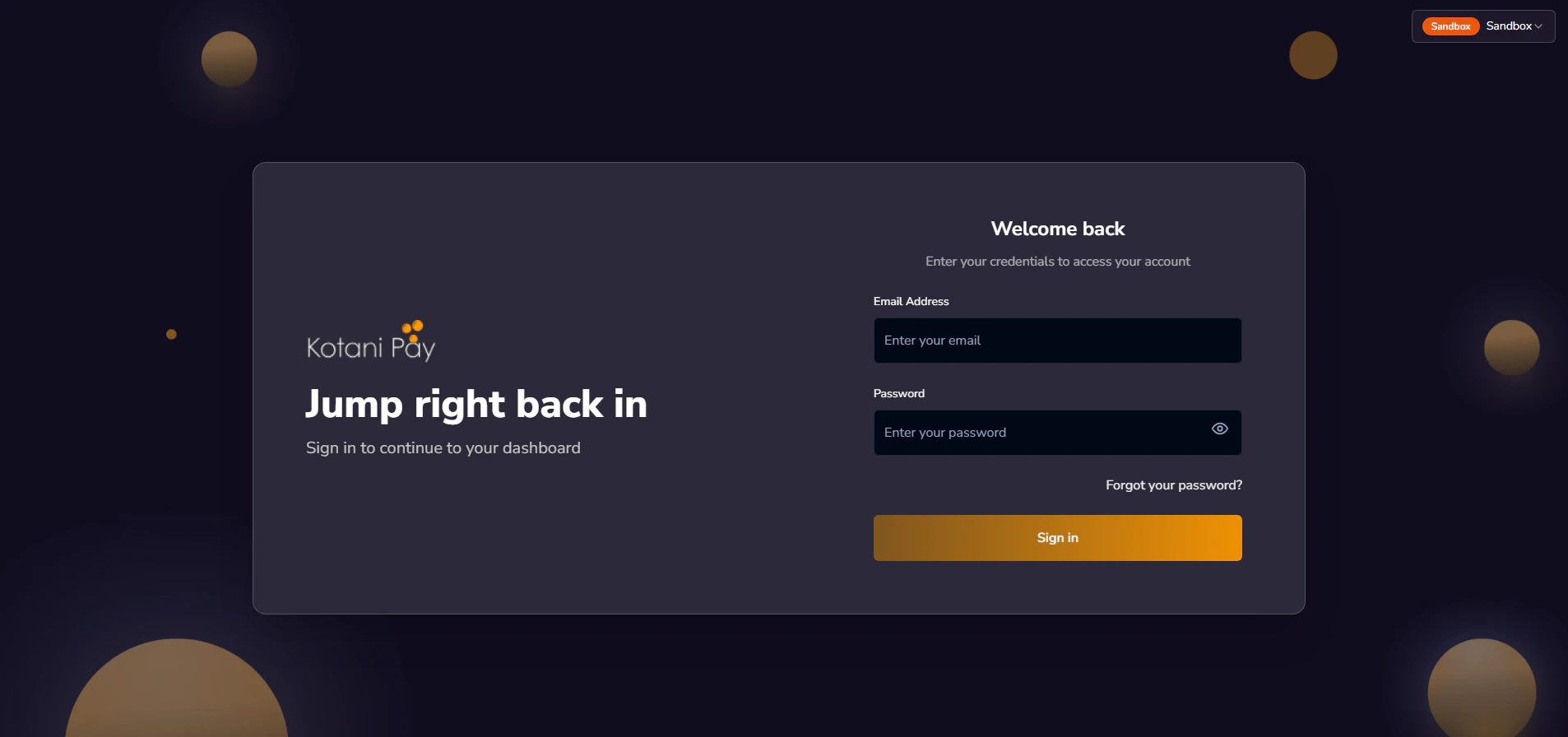 Your dashboard login is separate from the API authentication flow. The dashboard uses email + password. The API uses a magic link sent to your email — see [API Keys](/v3/getting-started/api-keys) for that flow.
***
## Choosing Your Environment
On your **first login**, before the main dashboard loads, you'll see an environment gate asking which environment to work in.
Your dashboard login is separate from the API authentication flow. The dashboard uses email + password. The API uses a magic link sent to your email — see [API Keys](/v3/getting-started/api-keys) for that flow.
***
## Choosing Your Environment
On your **first login**, before the main dashboard loads, you'll see an environment gate asking which environment to work in.
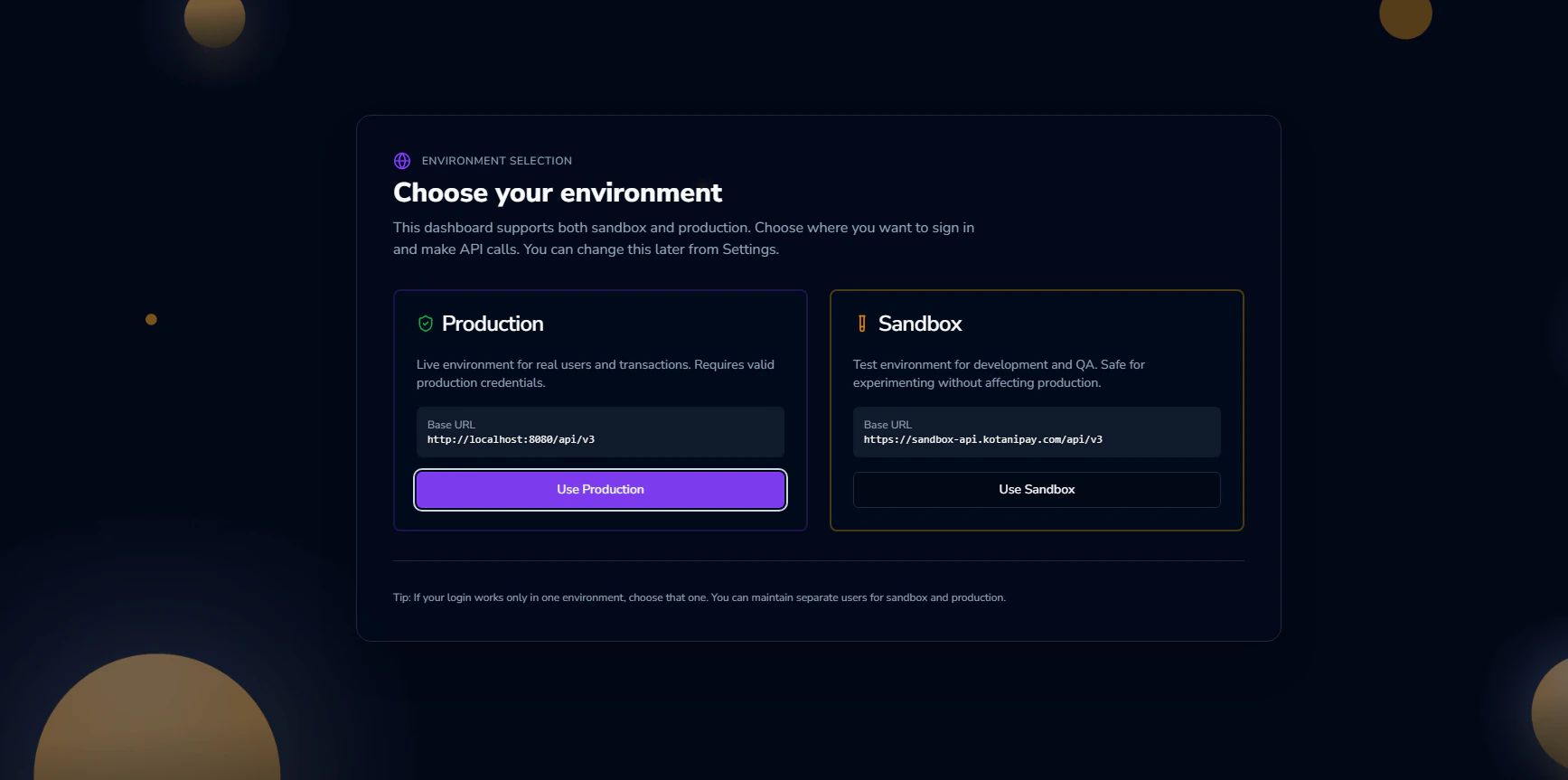 Select **Sandbox** to work with test data, or **Production** if your account has been provisioned for live transactions. You can switch at any time using the **environment selector in the top right** of the dashboard.
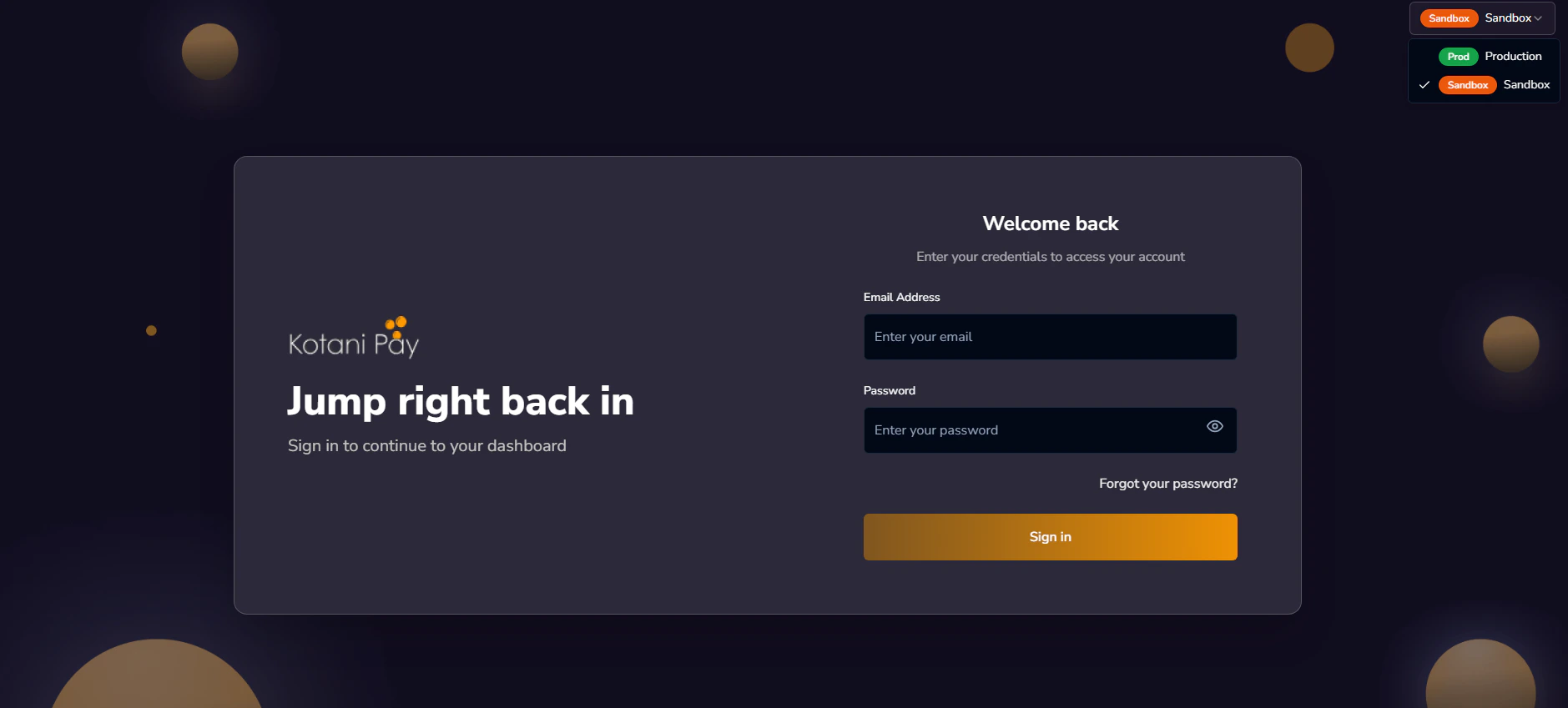 Sandbox and production are completely isolated. Transactions, API keys, wallets, and customers do not cross between environments.
***
## First-Time Login / Setting Your Password
If your account was just created and you haven't set a password yet, use the **Forgot Password** flow below to set one. Your account email is your registered integrator email.
***
## Forgot Password
If you don't have a password or can't remember it:
On the login page, click the **Forgot Password** link.
Sandbox and production are completely isolated. Transactions, API keys, wallets, and customers do not cross between environments.
***
## First-Time Login / Setting Your Password
If your account was just created and you haven't set a password yet, use the **Forgot Password** flow below to set one. Your account email is your registered integrator email.
***
## Forgot Password
If you don't have a password or can't remember it:
On the login page, click the **Forgot Password** link.
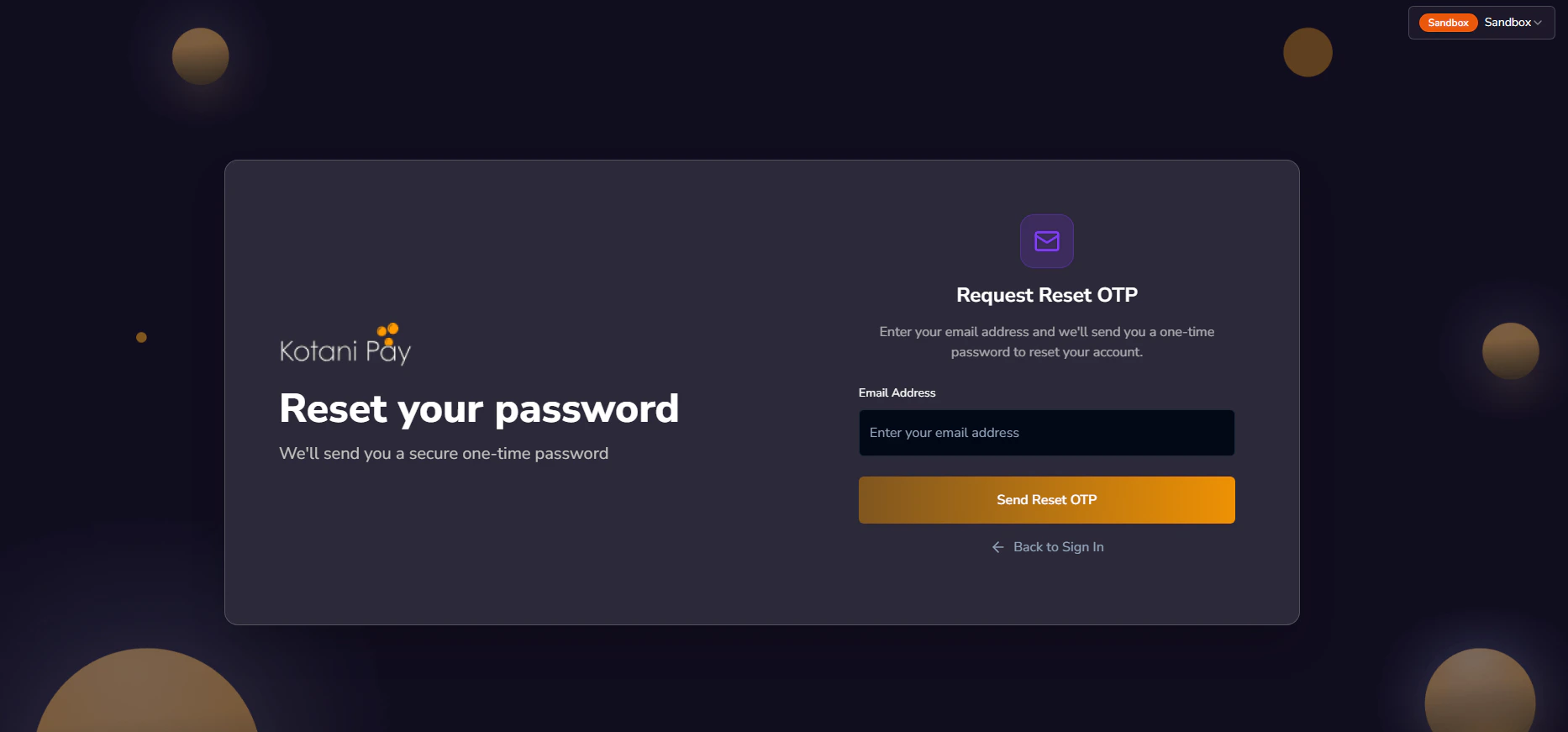 Enter your registered integrator email and submit. A **6-digit OTP** is sent to that email address. The code expires in **10 minutes**.
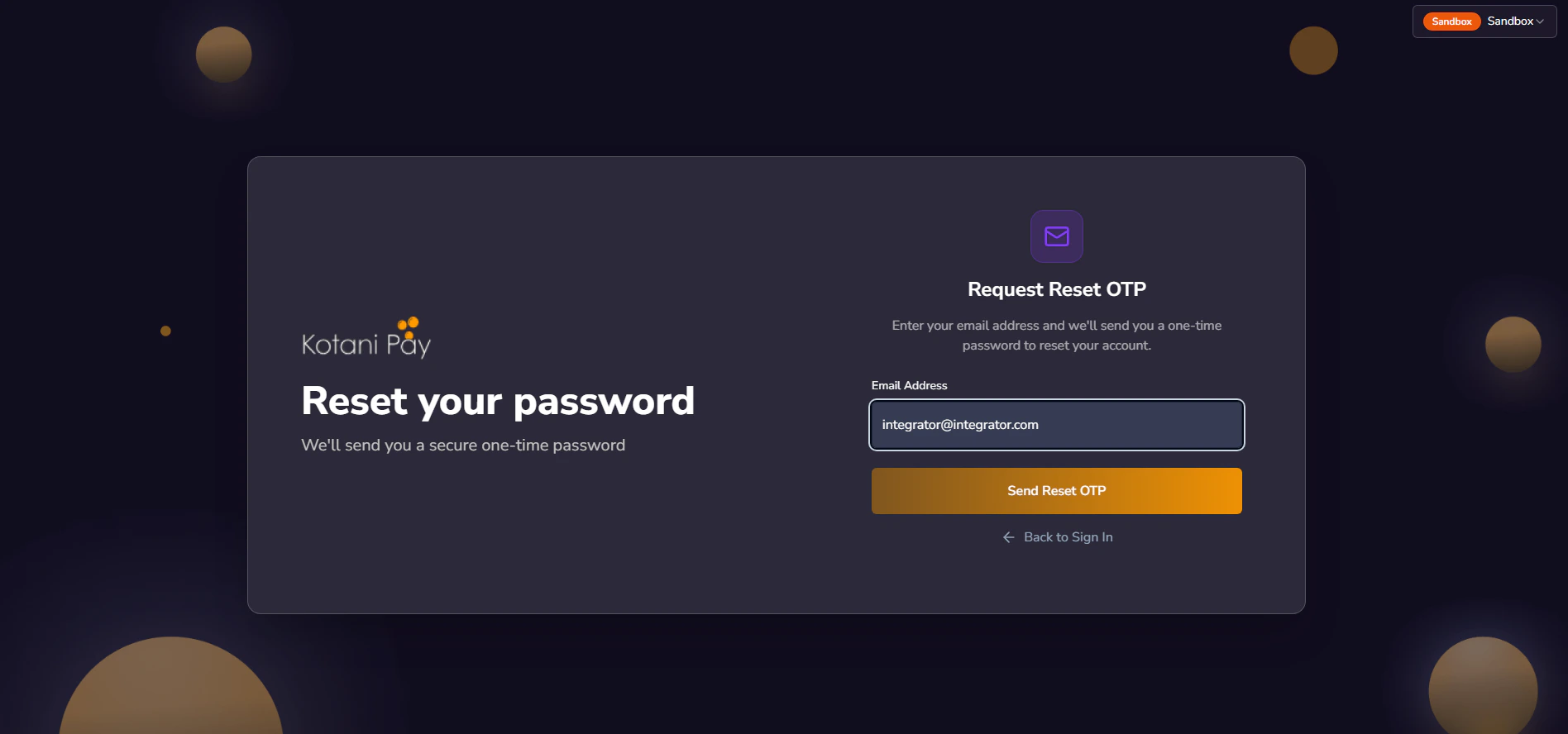 Look for an email from Kotani Pay with your one-time password. Check spam if you don't see it within a minute.
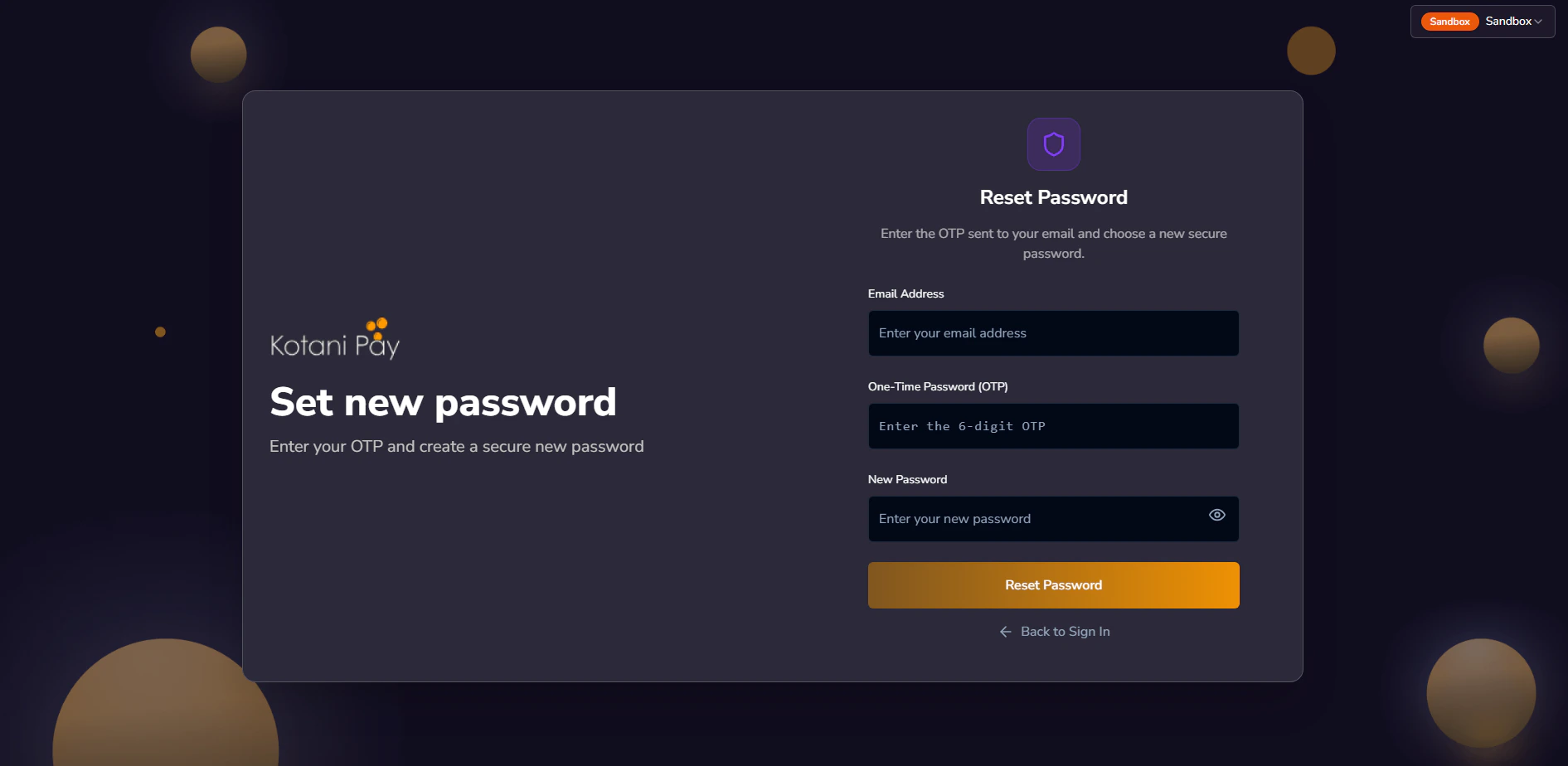 The OTP is valid for **10 minutes** only. If it expires, repeat the process to get a new one.
Back on the dashboard, enter the 6-digit code along with your new password (and confirmation). Submit to save.
The OTP is valid for **10 minutes** only. If it expires, repeat the process to get a new one.
Back on the dashboard, enter the 6-digit code along with your new password (and confirmation). Submit to save.
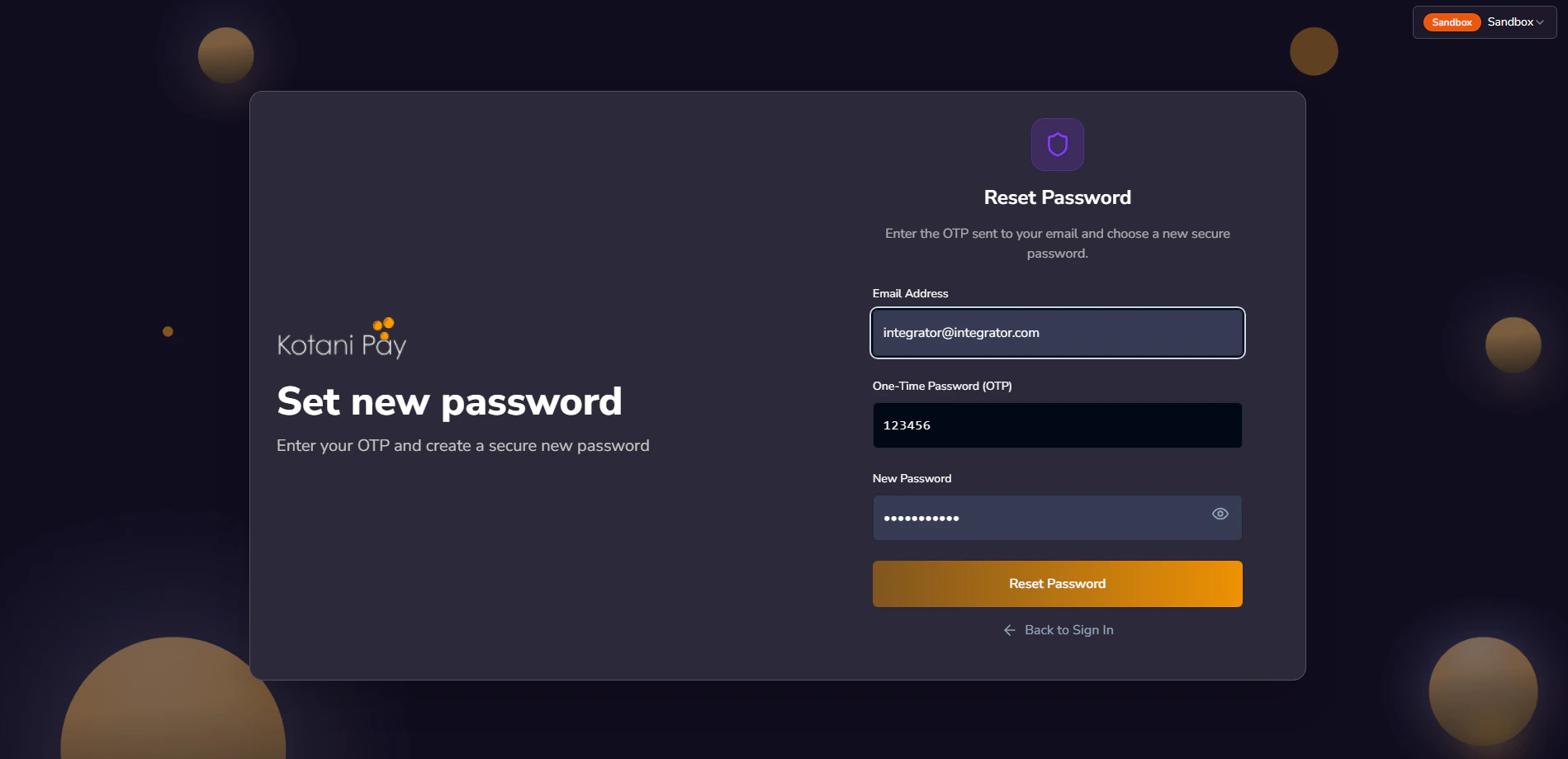 Once saved, go back to the login screen and sign in with your email and the new password.
If you don't receive the OTP email, check your spam folder or contact [support@kotanipay.com](mailto:support@kotanipay.com).
***
## Dashboard Overview
After logging in, you'll see the main dashboard. The **left sidebar** is your primary navigation.
Once saved, go back to the login screen and sign in with your email and the new password.
If you don't receive the OTP email, check your spam folder or contact [support@kotanipay.com](mailto:support@kotanipay.com).
***
## Dashboard Overview
After logging in, you'll see the main dashboard. The **left sidebar** is your primary navigation.
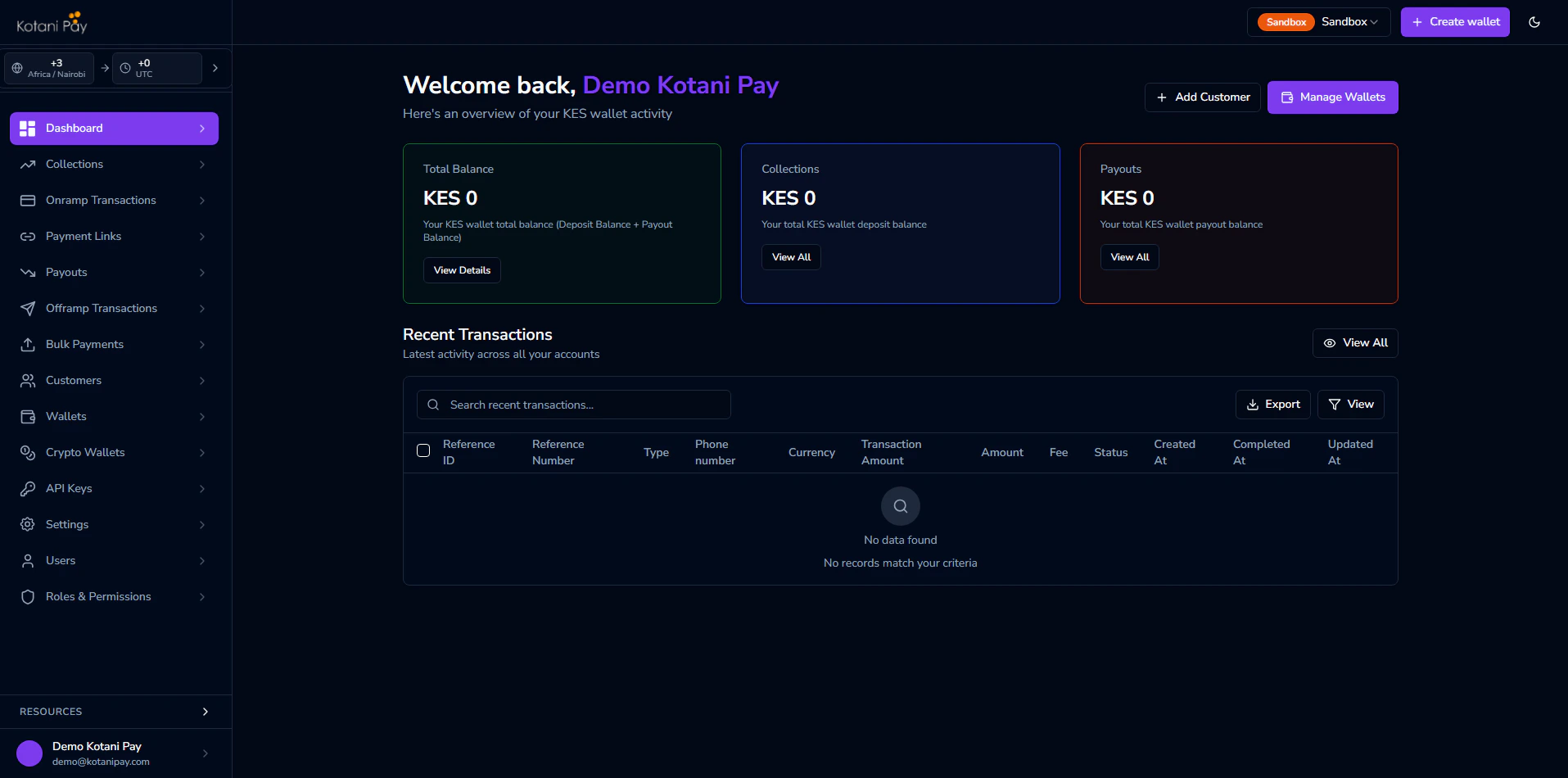 | Section | What You Can Do |
| ------------------------ | -------------------------------------------------------------------- |
| **Collections** | Browse and search all deposit/collection transactions |
| **Onramp Transactions** | Fiat-to-crypto transaction history |
| **Payment Links** | Create and manage hosted payment links |
| **Payouts** | Browse and search all withdrawal/disbursement transactions |
| **Offramp Transactions** | Crypto-to-fiat transaction history |
| **Bulk Payments** | Upload and manage bulk disbursement batches |
| **Customers** | Create and manage mobile money customer profiles |
| **Wallets** | View deposit and payout balances per currency, transfer between them |
| **Crypto Wallets** | View crypto balances per chain |
| **API Keys** | Generate and manage API keys |
| **Settings** | Webhook URLs, account details, and configuration |
| **Users** | Invite and manage team members who have dashboard access |
| **Roles & Permissions** | Define roles and assign permissions to dashboard users |
***
## Country & Currency Filter
In the **top-right corner** of the dashboard, there is a **country and currency selector**. This filters all transaction lists and balance views to show only records for that country/currency combination.
| Section | What You Can Do |
| ------------------------ | -------------------------------------------------------------------- |
| **Collections** | Browse and search all deposit/collection transactions |
| **Onramp Transactions** | Fiat-to-crypto transaction history |
| **Payment Links** | Create and manage hosted payment links |
| **Payouts** | Browse and search all withdrawal/disbursement transactions |
| **Offramp Transactions** | Crypto-to-fiat transaction history |
| **Bulk Payments** | Upload and manage bulk disbursement batches |
| **Customers** | Create and manage mobile money customer profiles |
| **Wallets** | View deposit and payout balances per currency, transfer between them |
| **Crypto Wallets** | View crypto balances per chain |
| **API Keys** | Generate and manage API keys |
| **Settings** | Webhook URLs, account details, and configuration |
| **Users** | Invite and manage team members who have dashboard access |
| **Roles & Permissions** | Define roles and assign permissions to dashboard users |
***
## Country & Currency Filter
In the **top-right corner** of the dashboard, there is a **country and currency selector**. This filters all transaction lists and balance views to show only records for that country/currency combination.
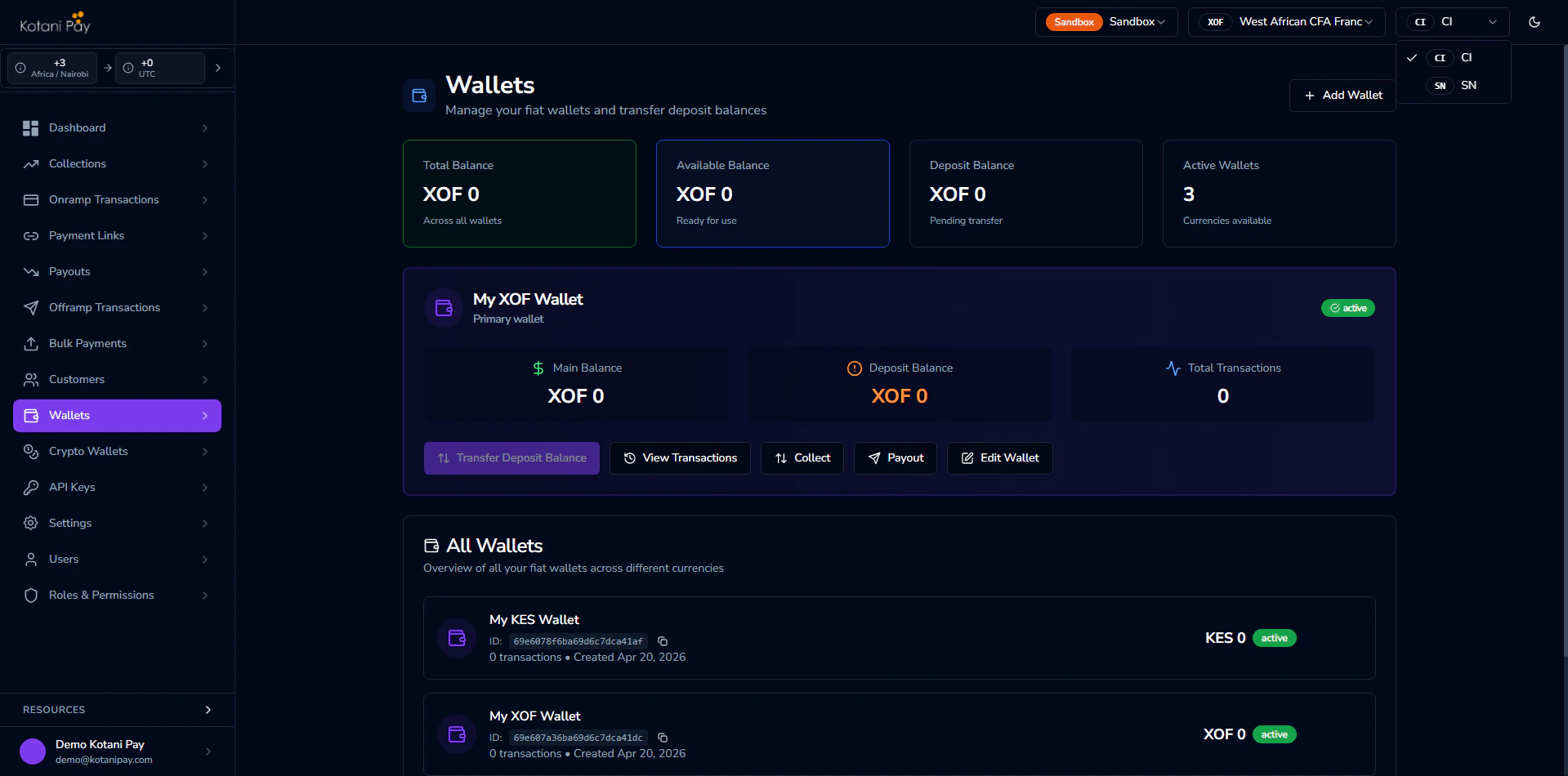 For example, selecting **Kenya / KES** shows only KES transactions and the KES fiat wallet. If you operate in multiple countries, switch between them here to see the full picture.
***
## Next Steps
Set up API keys to authenticate your server-side integration
Understand deposit vs payout balances and how to settle funds
For example, selecting **Kenya / KES** shows only KES transactions and the KES fiat wallet. If you operate in multiple countries, switch between them here to see the full picture.
***
## Next Steps
Set up API keys to authenticate your server-side integration
Understand deposit vs payout balances and how to settle funds